3D Workspace
Home
Assets
Affiliate Program
Sign up/Log in
?
Upgrade
DCC Bridge
Anonymous1770307377
02-05 19:50
Model Name
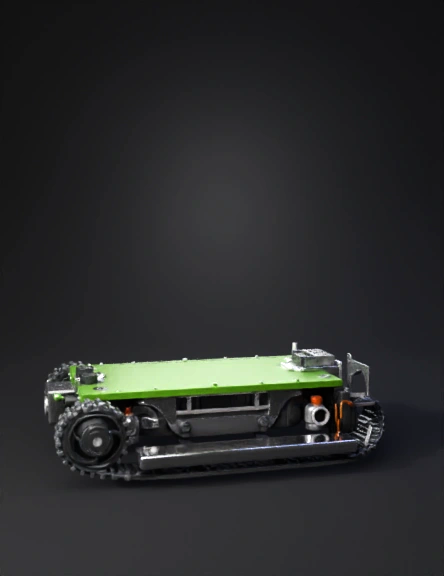
tracked robot chassis 3d model
Tags
motors
realistic
rendering
rendering realistic
tracked robot chassis
vehicle
vehicle realistic
vehicle rendering
vehicle rendering realistic
Prompt
🟢 PHASE 1 — COMPONENT SETUP (NO MODELING YET) STEP 1.1: Create components (structure) Right-click top name → New Component Create these exactly: Base_Chassis Left_Track Right_Track Motors Electronics_Tray Top_Frame 📌 Rule: ✔ Always activate component before sketching ❌ Never sketch on “Body 1” 🟢 PHASE 2 — BASE CHASSIS (FOUNDATION) STEP 2.1: Activate Base_Chassis Click the radio button next to Base_Chassis STEP 2.2: Sketch base plate Create Sketch Select Top Plane Center Rectangle Dimensions: Length: 220 mm Width: 160 mm Finish Sketch STEP 2.3: Extrude base Select rectangle Extrude Distance: 5 mm Operation: New Body ✅ Base plate done. 🟢 PHASE 3 — MOTORS (BOTTOM MOUNT) STEP 3.1: Activate Motors component STEP 3.2: Create BO motor placeholder (We model simple blocks now) Motor size: Length: 66 mm Width: 26 mm Height: 30 mm Steps: Create Sketch Select bottom face of base plate Draw rectangle → 66 × 26 Finish Sketch Extrude → 30 mm downward STEP 3.3: Position motor Move/Copy (M) Place motor near left side Align shaft direction toward track (Only one motor now — we’ll mirror later)
Detailed Info
Related Models
Enter invite code
Enter invite code to get credits!
 Anonymous1770307377


 Anonymous1770307377